
BIMB Web/Mobile – for Individual Customers
Get Started with BIMB Mobile
Follow these simple steps to register and access your e-Statements through the BIMB Mobile app.
| Step 1 | Download BIMB Mobile app by scanning the QR code: |
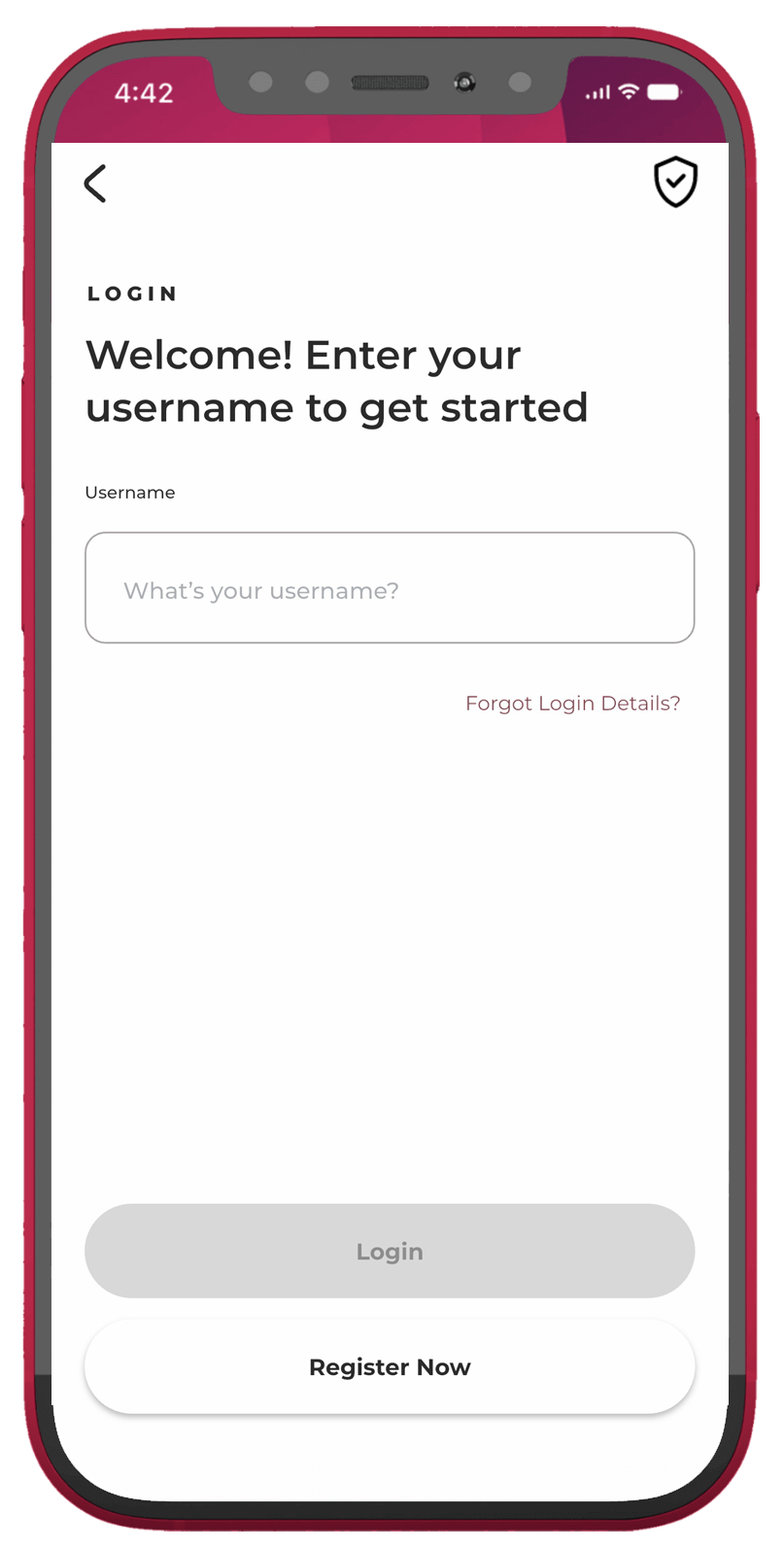
| Step 2 | Open the app and select Already have an account? Login or Register |
| Step 3 | Tap Agree & Continue |
| Step 4 | Tap Register Now and choose your preferred registration method:
|
| Step 5 | Enter your account details and tap Agree & Continue |
| Step 6 | Create your Username and tap Next |
| Step 7 | Create and confirm your password, then tap Create Password |
| Step 8 | Choose your Security Image and Security Phrase, then tap Next |
| Step 9 | Select three Security Questions and provide your answers, then tap Next |
| Step 10 | Enter your email address and tap Next |
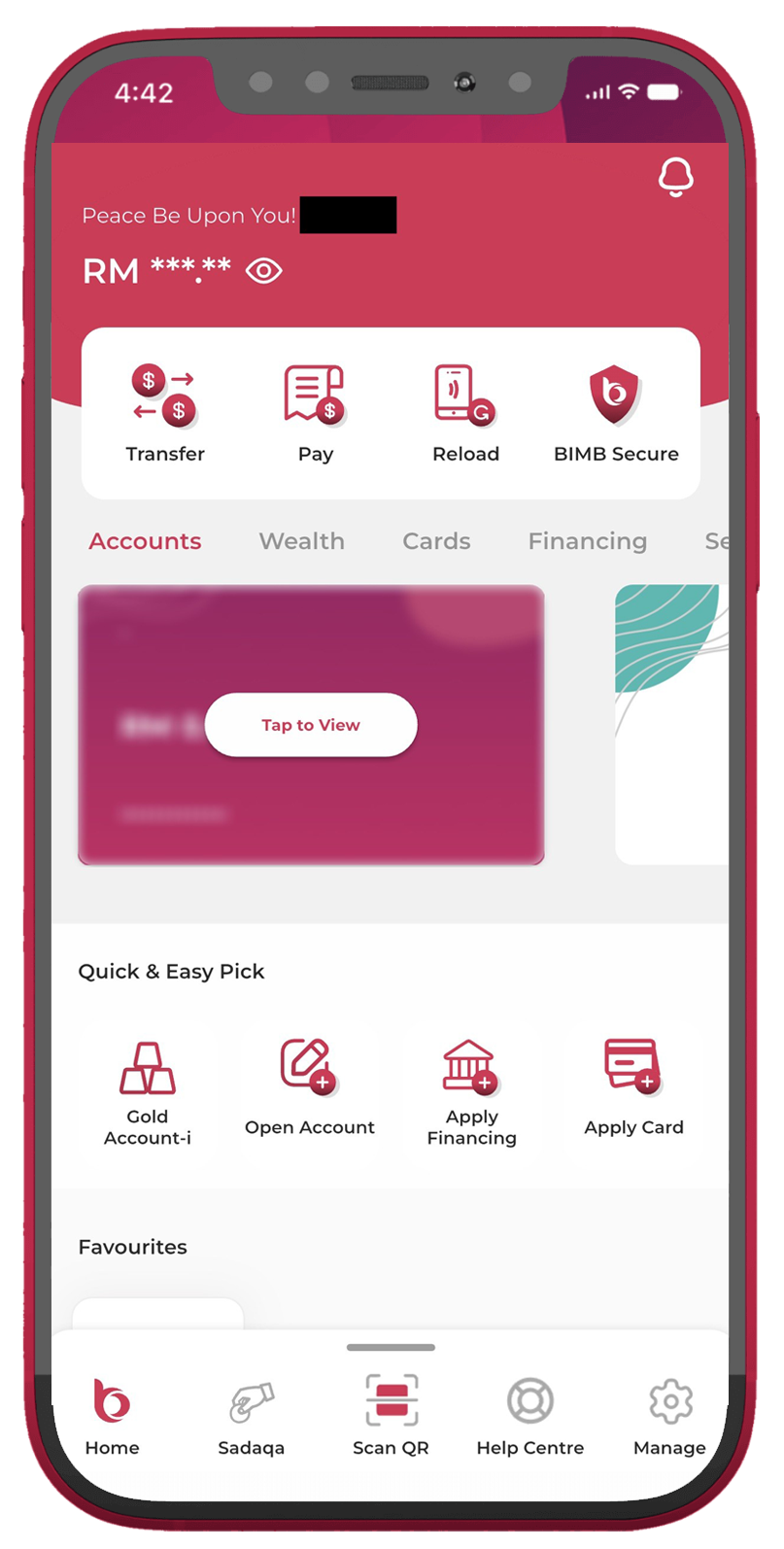
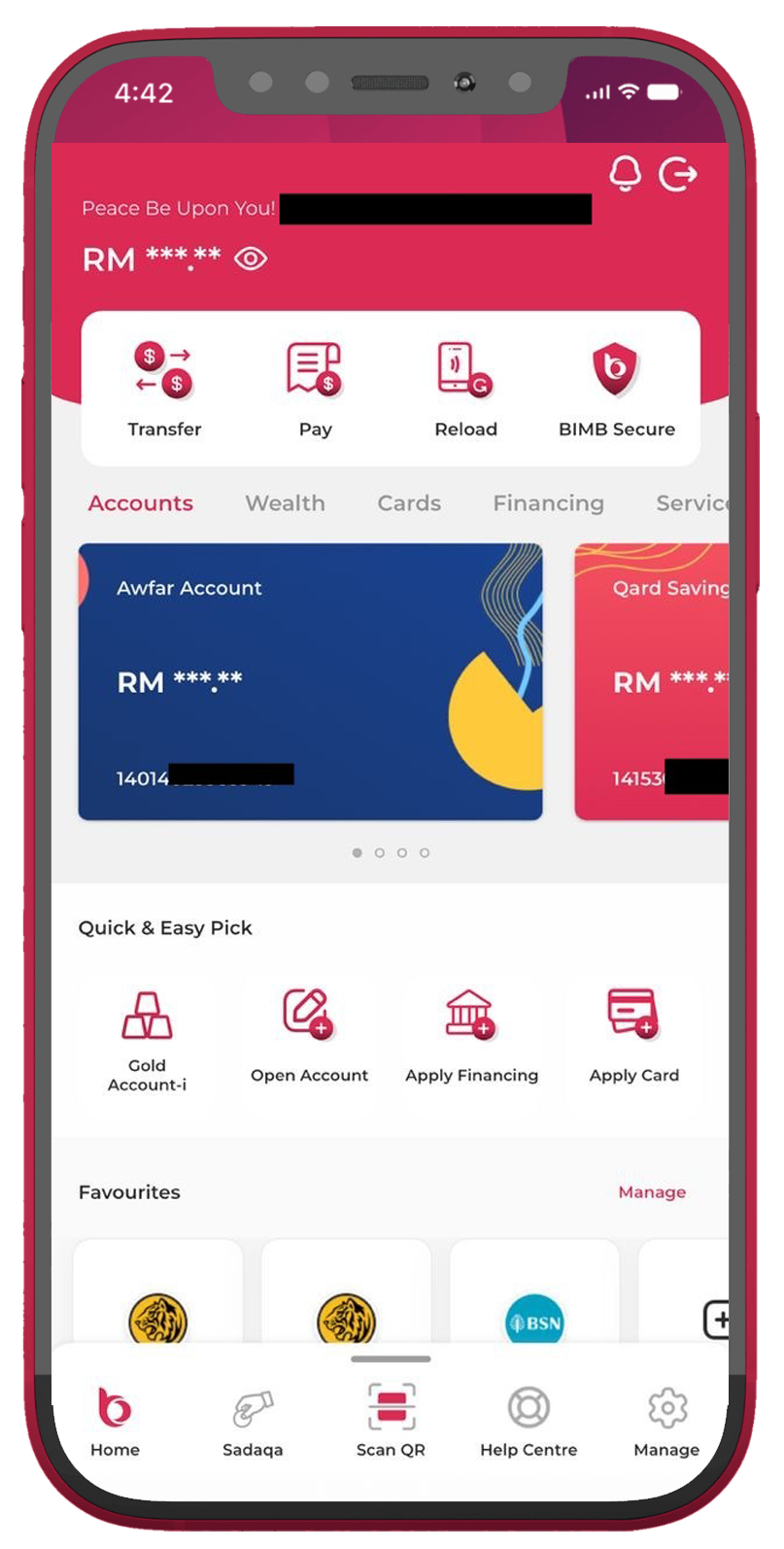
| Step 11 | Registration is complete. Tap Continue to Dashboardand proceed with online activation. |
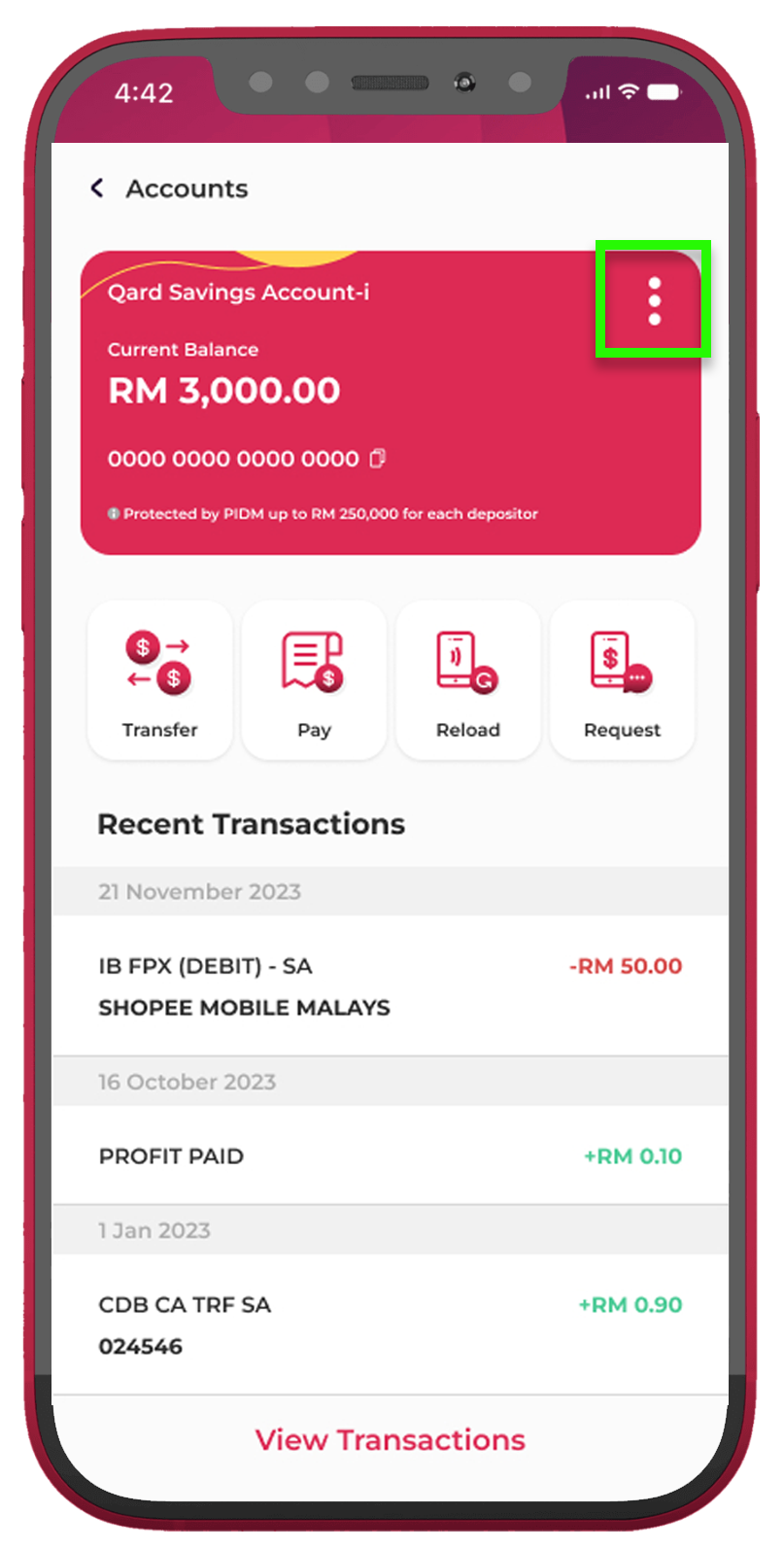
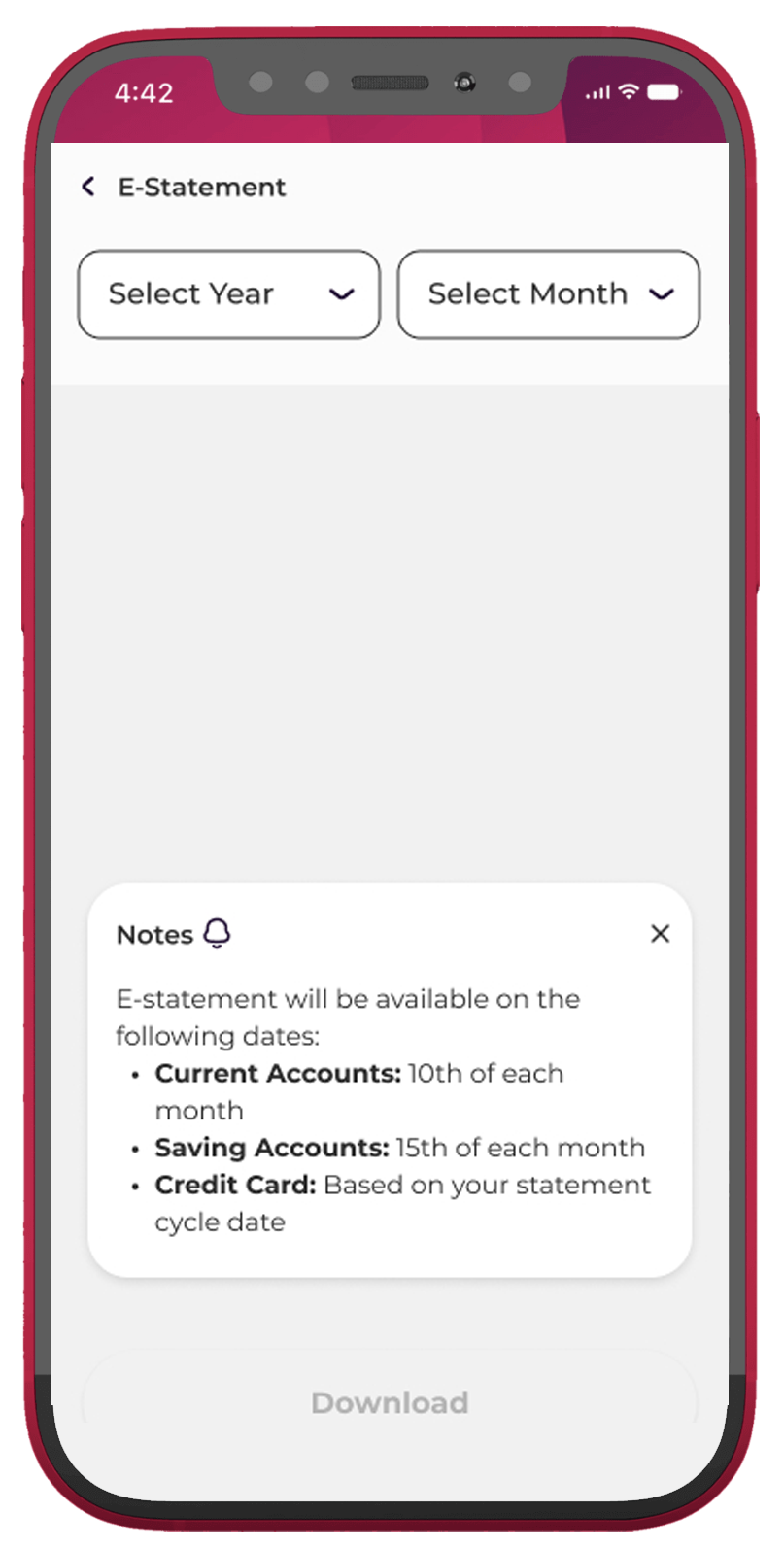
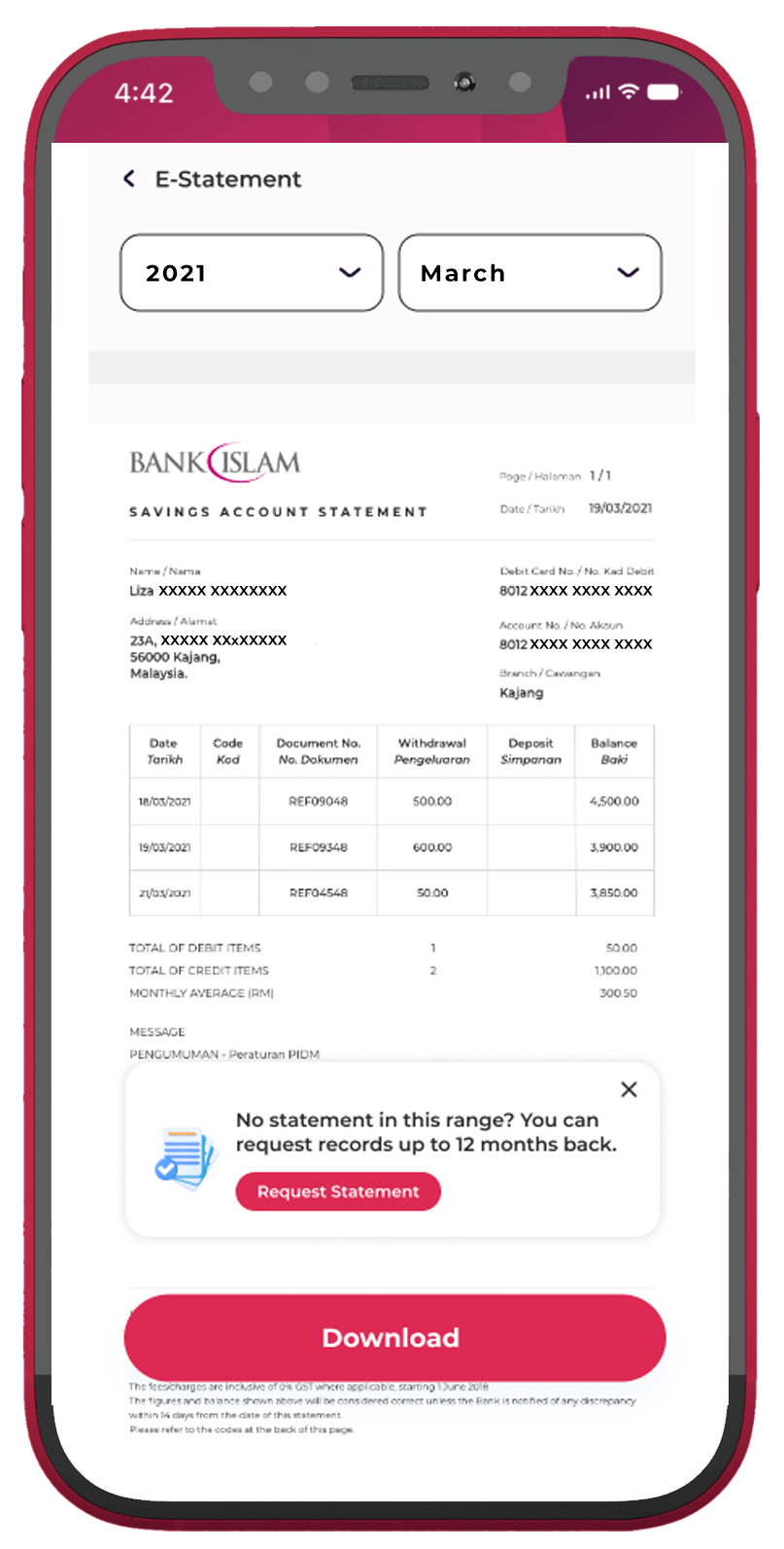
| Step 12 | Once registered, select With BIMB Mobile Account to access and download your e-Statements. |
Step 1 : |
Step 2 : |
 |
 |
Step 3 : |
Step 4 : |
 |
 |
Step 5 : |
Step 6 : |
 |
 |
Step 7 : |
|
 |
Step 1 :
|
 |
Step 2 :
|
 |
Step 3 :
|
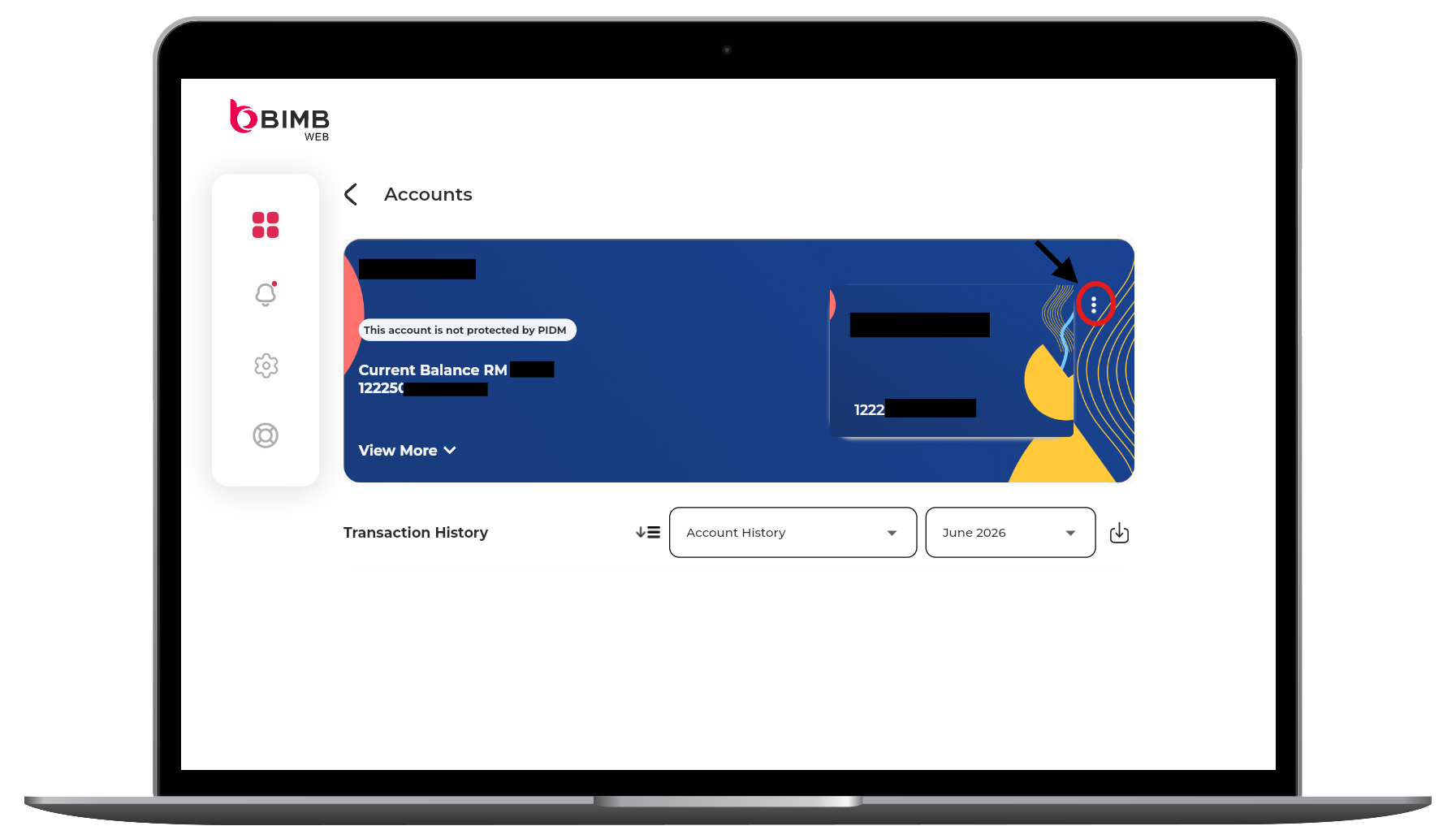 |
Step 4 :
|
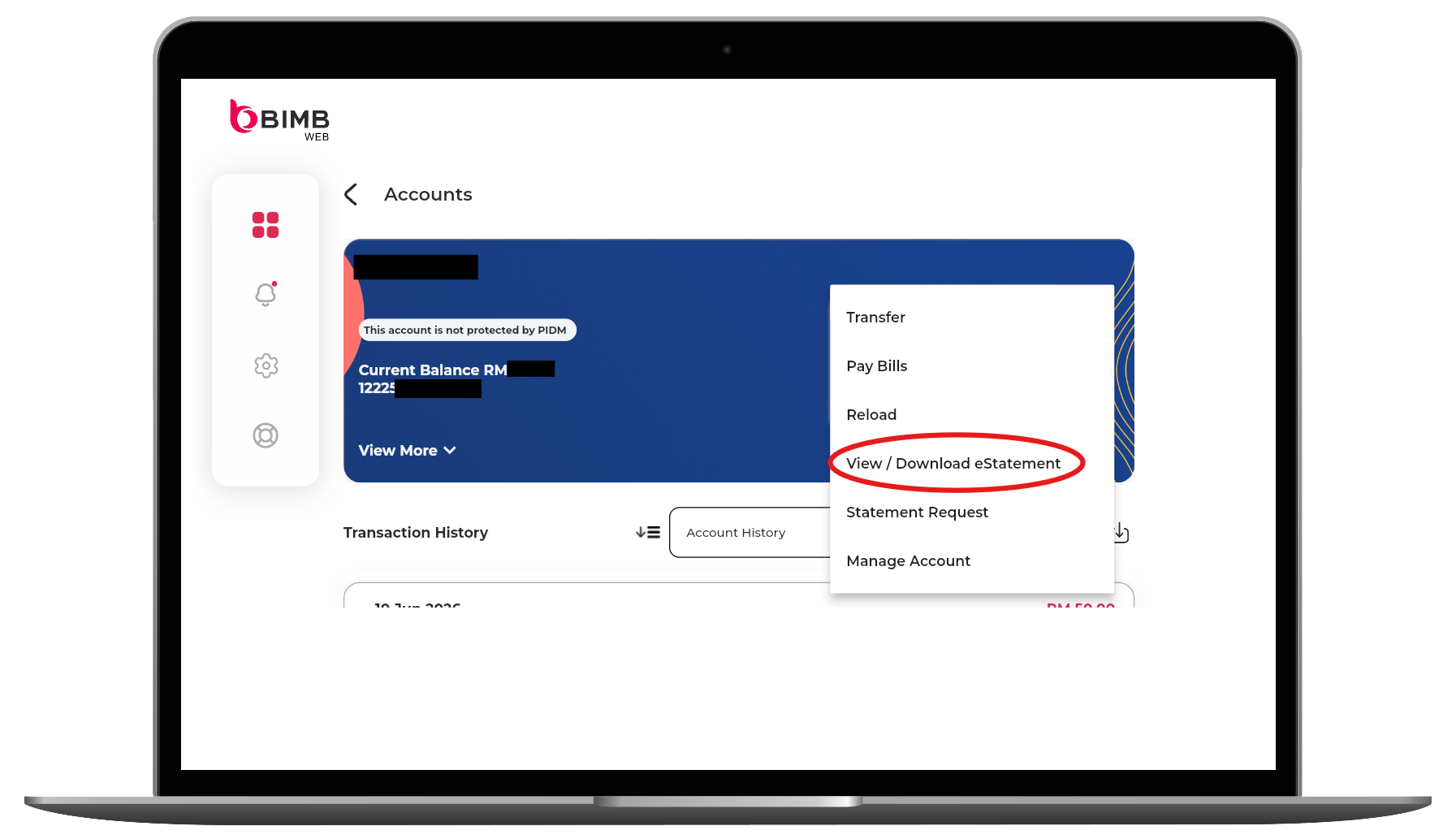 |
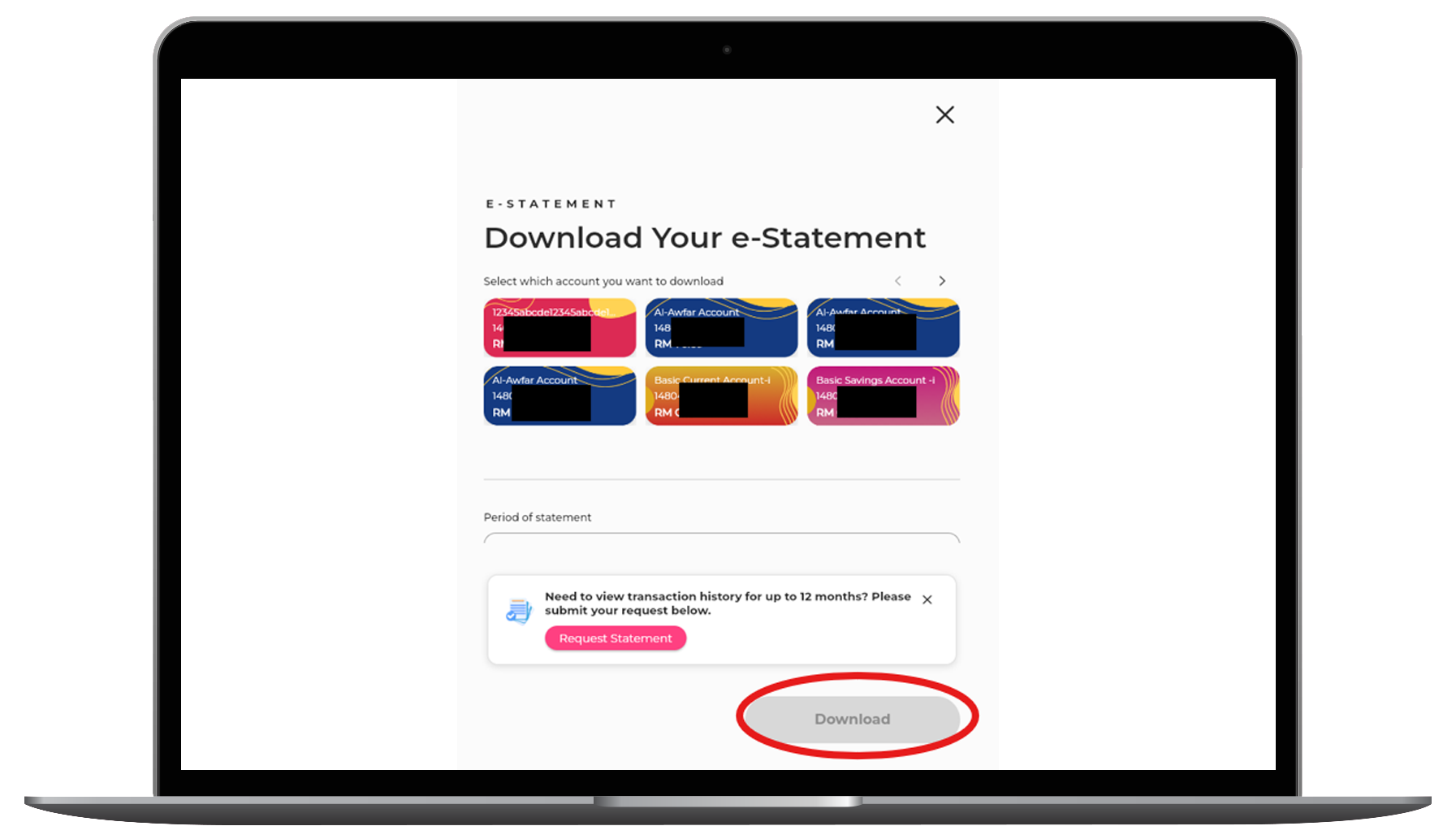
Step 5 :
|
 |